
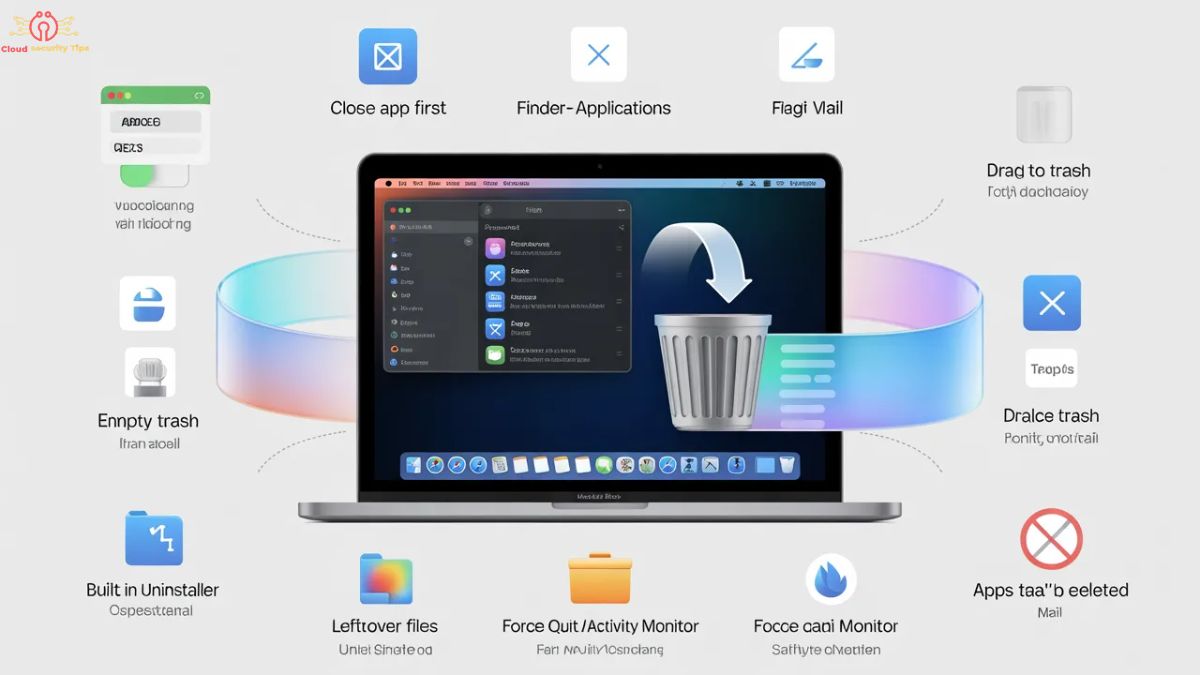
Uninstalling apps on a Mac seems simple at first, but many users do it the wrong way. They think dragging an app to the Trash is enough, but in reality, that often leaves behind hidden files. Over time, these leftover files can take up storage and slow down your system.
This guide explains everything in simple English so you can properly remove apps from your Mac without confusion. It also covers problems like apps that won’t delete and what to do when that happens.
Why Uninstalling Apps Properly Matters
When you install an app on a Mac, it doesn’t just stay in one place. It creates support files, cache data, preferences, and sometimes background services. Even after you delete the main app, these files can remain on your system.
These leftover files are small individually, but over time they build up and can take a large amount of storage. This is one of the hidden reasons why a Mac becomes slow or runs out of space even when you think you have deleted unused apps.
Proper uninstallation ensures that both the app and its hidden files are removed completely. This keeps your system clean, improves storage management, and reduces background load.
The Basic Way to Delete Apps on Mac
The simplest method to remove an app is using Finder. This works for most normal applications that you install from the internet or the App Store.
First, you need to make sure the app is completely closed. If the app is running in the background, macOS will not allow you to delete it. Once it is closed, you can open Finder and go to the Applications folder where all installed apps are stored.
From there, you can locate the app you want to remove. After finding it, you simply move it to the Trash. Once it is in the Trash, you can empty the Trash to permanently remove it from your system.
This method is quick and works in most cases, but it does not always remove all files related to the app. That is why some users notice that their storage does not increase much even after deleting apps.
Using the Built-in Uninstaller (Best Method)
Some apps come with their own uninstall system. This is usually the safest and most complete way to remove an application.
Instead of manually deleting the app, you open its folder and look for an uninstaller tool. This tool is designed by the developer to remove everything related to the app, including hidden files, login items, and background extensions.
When you run an uninstaller, it automatically cleans the system in a more complete way than manual deletion. This is especially useful for large apps like editing software, antivirus tools, or games that store data in multiple locations.
If an app provides an uninstaller, it is always better to use it instead of dragging the app to the Trash.
Deleting Apps Using Spotlight Search
Sometimes, you may not easily find the app inside the Applications folder. In that case, Spotlight Search can help.
By pressing Command and Space together, you can quickly search for any app installed on your Mac. When the app appears in the search results, you can open its location in Finder.
From there, you can move it to the Trash just like before. This method is useful when apps are hidden inside folders or when you forget where you installed them.
However, even with this method, hidden files may still remain on your system unless you clean them manually or use an uninstaller.
When an App Refuses to Delete
One of the most common problems Mac users face is when an app cannot be deleted. The system shows a message like the app is currently in use, even when you think it is closed.
This happens because the app is still running in the background. Many applications keep hidden processes active even after you close the main window.
To fix this, you need to force stop the app using Activity Monitor. Once you open Activity Monitor, you can find the app process and stop it completely. After that, you can try deleting it again.
If that does not work, restarting your Mac often solves the problem because it clears all active processes. In more stubborn cases, starting your Mac in Safe Mode can help remove locked applications.
Why Some Apps Cannot Be Deleted
Not every app on a Mac is removable. Apple protects certain system applications because they are part of macOS itself.
Apps like Safari, Mail, Notes, Maps, Music, and News are built into the operating system. These apps are essential for system functions, so Apple does not allow users to delete them.
Even if you try, macOS will block the action. This is completely normal and not an error.
The Hidden Problem: Leftover Files
Even after deleting an app, many users do not realize that some files are still stored in the system. These include cache files, preferences, and support data.
These files are usually stored in system folders like Library, Application Support, and Cache directories. You do not see them directly, which is why people think the app is fully removed when it is not.
Over time, these leftover files can take significant storage space, especially if you install and uninstall many apps regularly.
Advanced Cleanup for Full Removal
If you want to completely remove an app, you need to go beyond basic deletion. After moving the app to Trash, you should also check system folders for remaining files.
Removing related folders from Library and support directories ensures that no hidden data remains. This method is more advanced and should be done carefully because deleting the wrong system files can cause problems.
For most users, using a built-in uninstaller or trusted cleanup tool is a safer option.
Final Thoughts
Uninstalling apps on Mac is not just about dragging icons to the Trash. That method only removes the visible part of the app, while hidden files often stay behind.
If you want to properly manage your Mac storage and keep your system running smoothly, you need to understand all uninstall methods. Using the built-in uninstaller is always the best option, while manual deletion is only a basic solution.
The key idea is simple: a clean uninstall is not about removing the app, but removing everything the app created on your system.